
Julie Mathews
Virtual Assistant
Jun 9, 2026
Issue No. 6
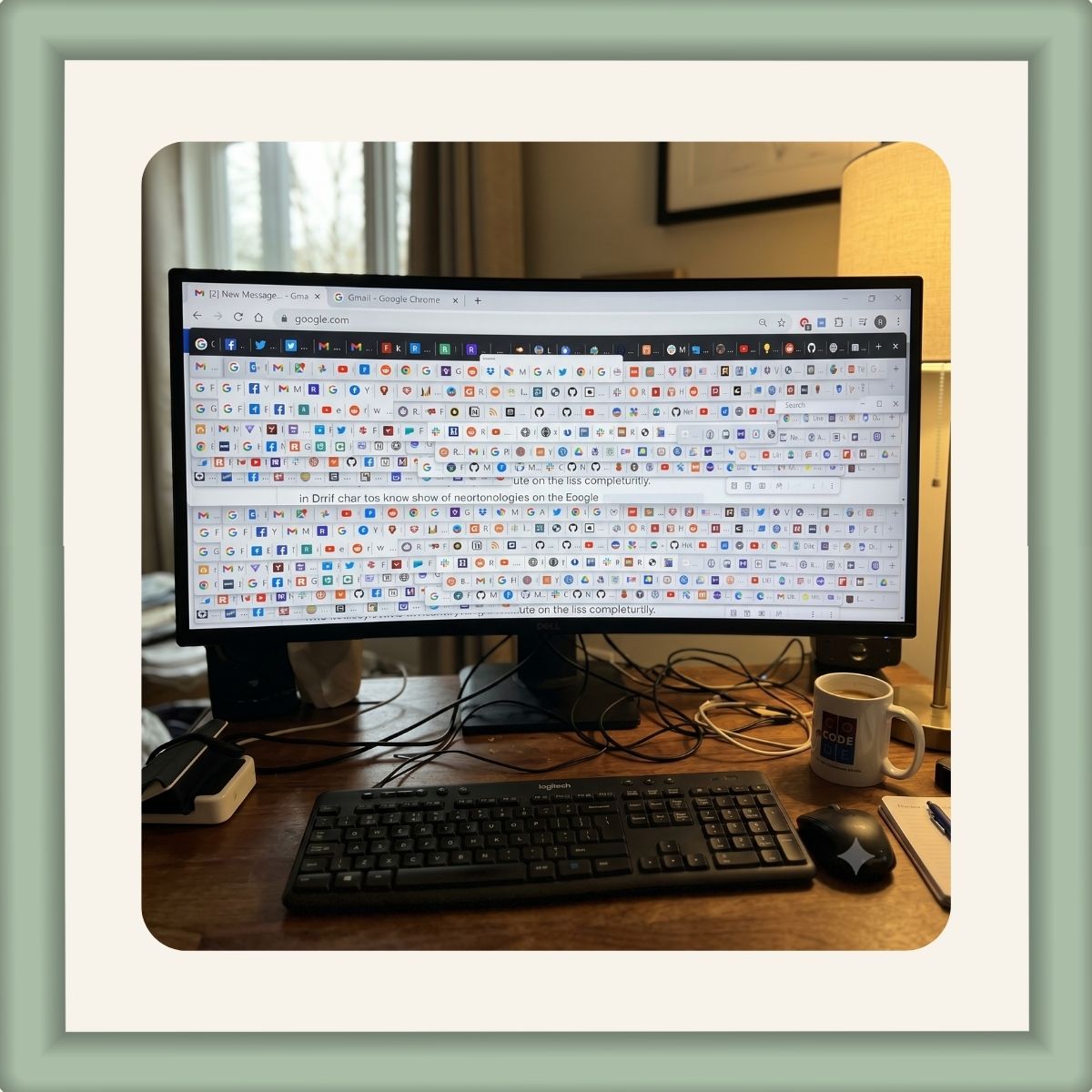
Have you ever looked at someone’s computer screen, or, let’s be honest, your own, and felt a wave of pure administrative panic? I’m talking about the dreaded “Tab Monster.” You know exactly what I mean: a browser window packed with so many open tabs that they shrink down into tiny, unreadable pinheads. At that point, finding the receipt or draft you opened ten minutes ago becomes a high-stakes game of digital hide-and-seek. And let’s not mention the tabs I’ve closed out by mistake try to go through them all too fast.
This week, we are diving into how clutter happens right at the top of your screen, and how a few simple tricks can transform your browser from a stressful mess into a streamlined workspace.
All the best,

It’s Time to Group Up!
I love tab groups. I usually have all my social media, or networking platforms, or other related groups open at the same time. To be honest, I don’t like more than 6to 8 tabs open, it’s hard for me to read what they are at that point. It is incredibly easy to fall into the “I’ll just leave this open for later” trap. Before you know it, your browser is holding fifty tabs hostage, draining your computer’s memory and your mental focus.
If you want to stop the madness and organize your desktop like a pro, here is a breakdown of how to handle browser clutter:
1. Leverage Tab Groups
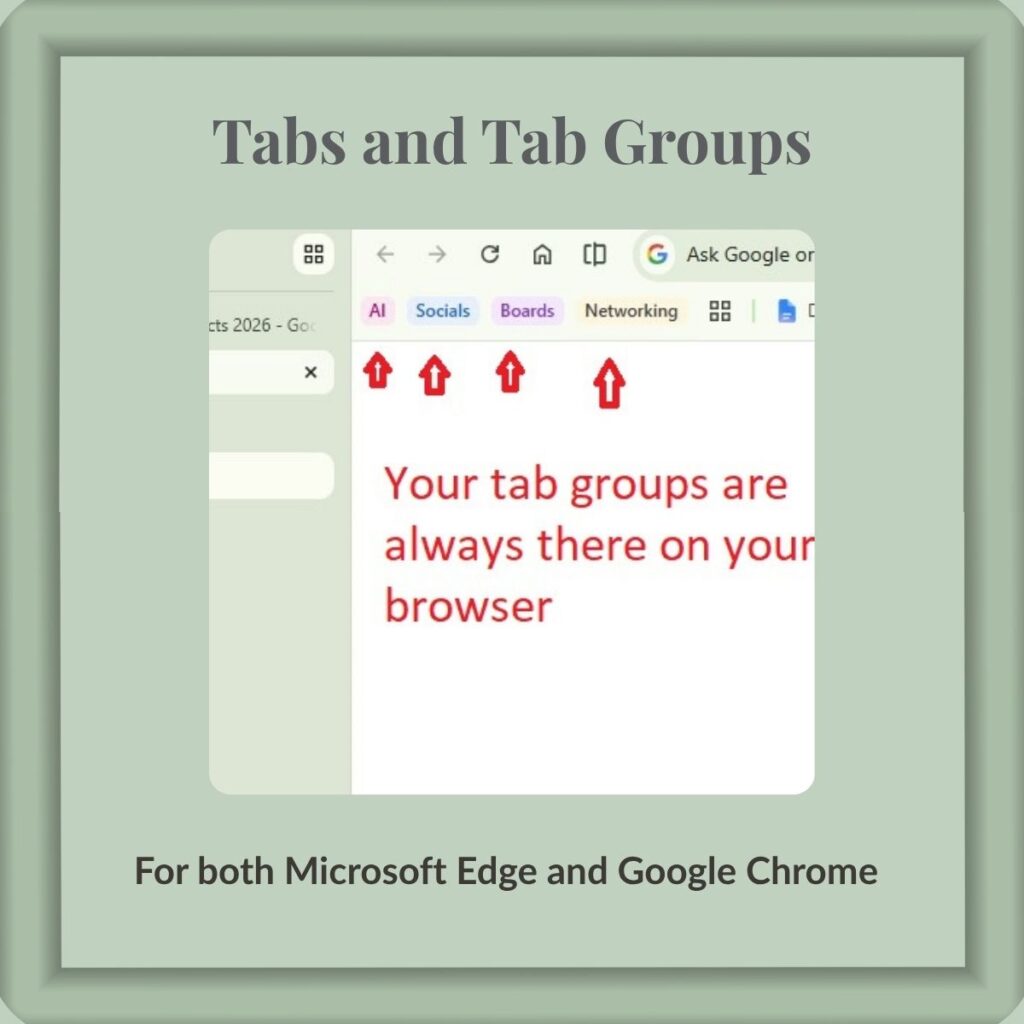
Most modern browsers (like Google Chrome and Microsoft Edge) allow you to right-click a tab and add it to a group. You can name the group, give it a color, and, best of all, collapse it! Re-open it again, and the tabs are just as you left them before.
- The Benefit: You can group all your “Invoicing & Payroll” links together, collapse them when you’re done, and instantly clear up your visual workspace.
2. Switch to Vertical Tabs
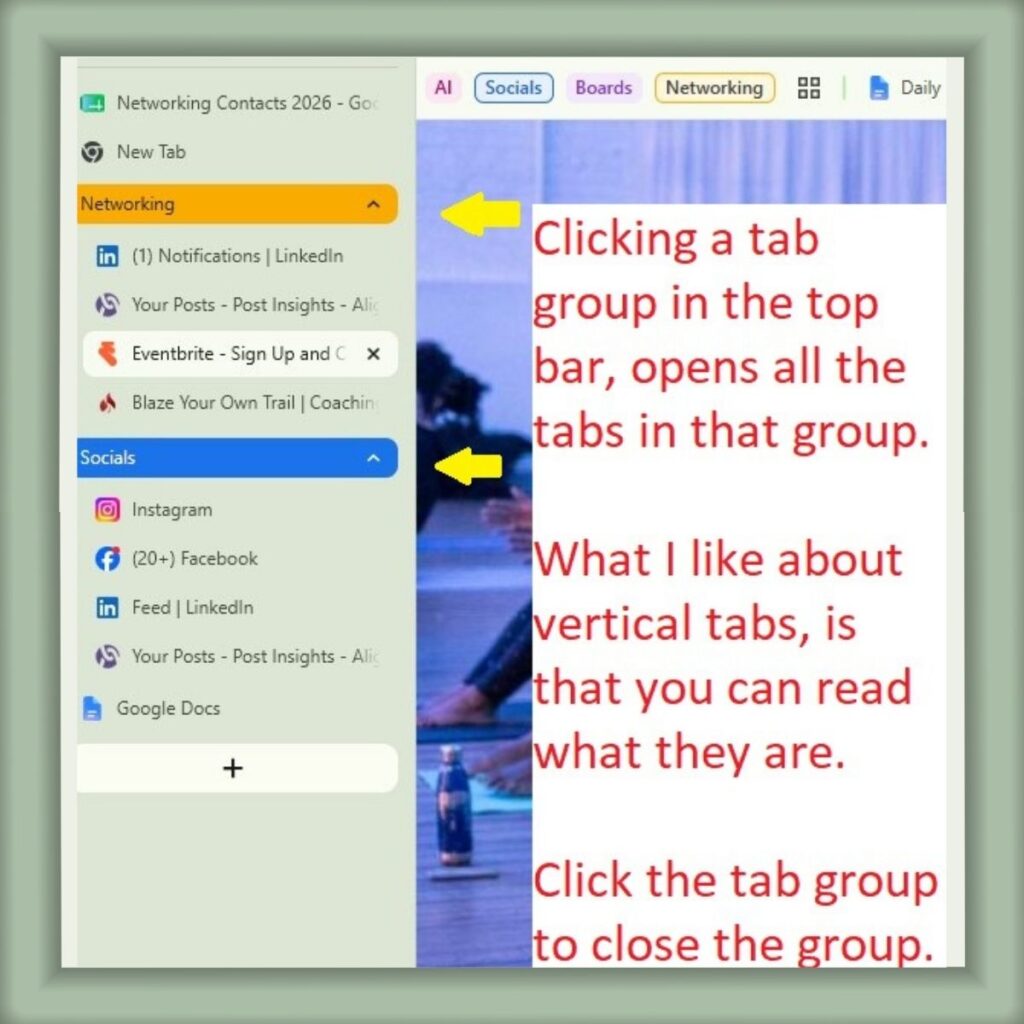
Switching to vertical tabs was a gamer changer for me, and my eyes. If you traditionally work on a widescreen monitor, horizontal tabs waste valuable vertical space and cut off text early. Switching your browser settings to vertical tabs moves your list to the left side of the screen.
The Benefit: You can actually read the full titles of your pages, no matter how many you have open.
Tools Or Toys
This week’s “tool” is Wavebox IO. If you have clients, you are probably used to bouncing back and forth, logging in and out of each clients accounts.
The best way I can describe it at this time is that, it’s Chromium based, and is a browser you run separately from your normal browser. Folder groups in the side bar can be used for specific clients or tasks. You can stay logged in one clients space, while going to another clients space and logging in there. Each space is isolated never get mixed, and they don’t get mixed in with your work.
I’ve just downloaded it and I’m going to be playing with it over the next couple of weeks so I will let you know how it all turns out.
If you have an admin problem you would like to get solved, feel free to book a coffee chat and let’s talk about a solution!
Would you like to be kept in the loop about how you can be helped in the fast paced changing world of administration?
I Invite you to subscribe Bits and Pieces Newsletter!
SUBSCRIBE!